Bundle
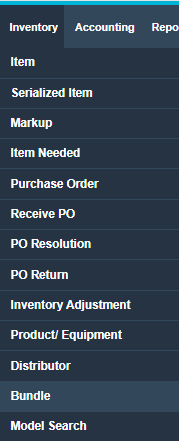
First, you’ll need to create your bundles within ServiceWorks. To access this menu, hover over Inventory in the toolbar and select Bundle from the dropdown box.
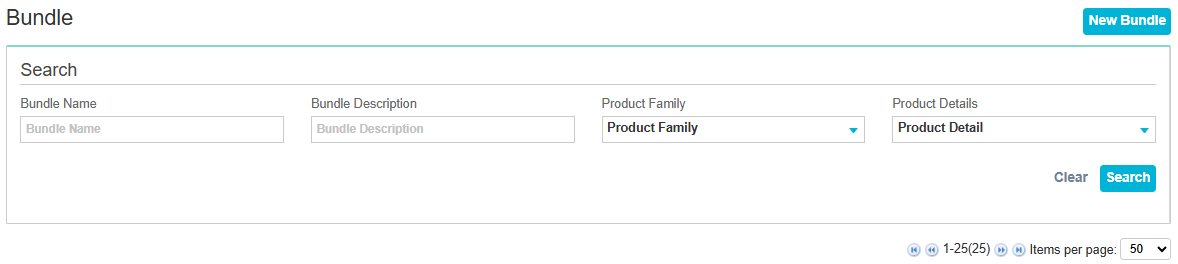
This will take you to the bundle menu, where you can search bundles by their name, description, product family, or product details. You can also create a new bundle by clicking New Bundle in the upper right corner.
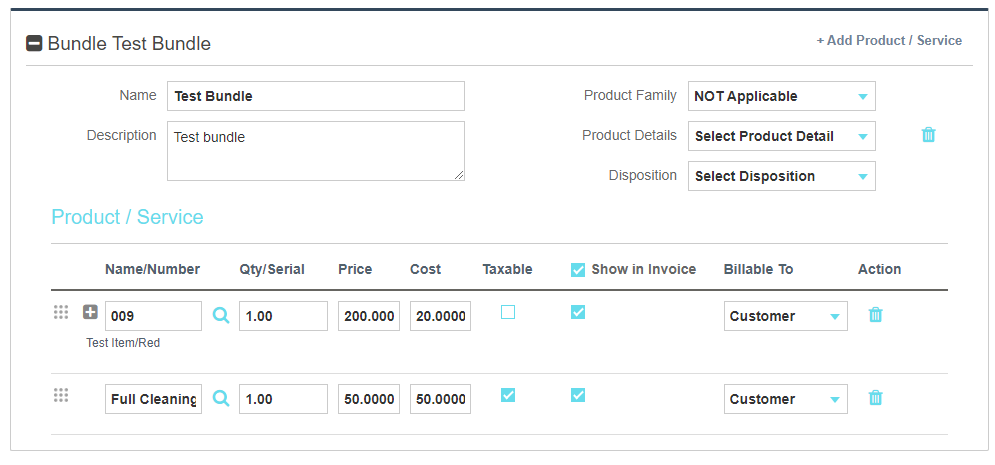
Now that you’re in the bundle edit menu, you can assign a name, description, product family and product detail to your bundles. Once assigned, you can add both items and services to the bundles by clicking +Add Product / Service and typing in either the name of the item/service in the entry field. In the example below, we’ve created a bundle that includes item #009 and the Full Cleaning service. Once you’ve made your additions to the bundle, be sure to click Save.
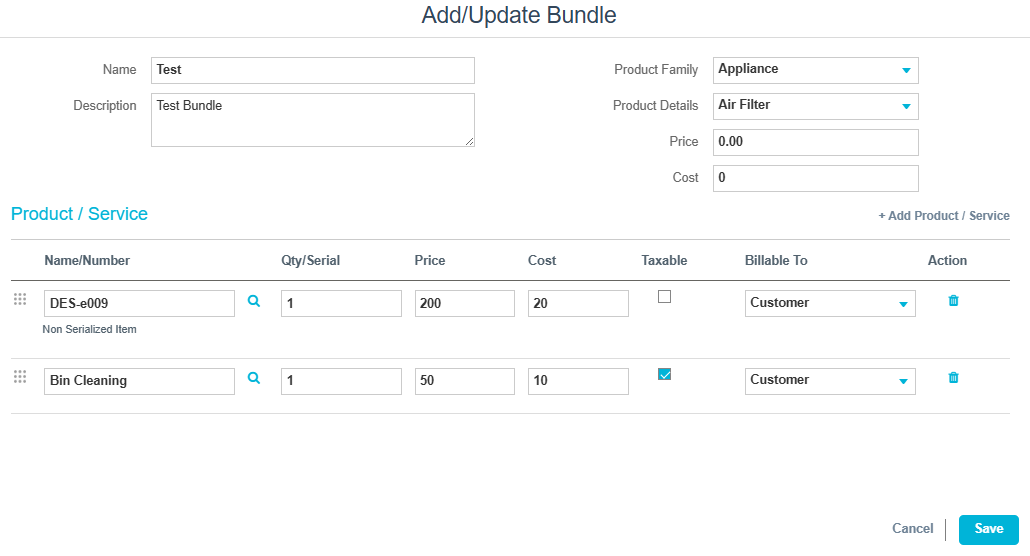
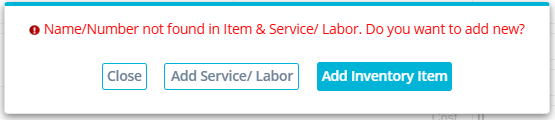
Note: You also have the ability to create items and services from this menu. Just type an item/service that hasn’t been created yet into the Name/Number field and a prompt will appear to ask if you want to create a new item or service.
Adding Bundle Dispositions
Similar to item dispositions, you can create and add your own custom dispositions to bundles. These dispositions will determine whether or not the items in the bundle are added to the invoice sent or removed from inventory upon being changed to that status.
To do this, open the configuration tab and select Bundle Settings. Click on New Disposition to reach the disposition edit menu.
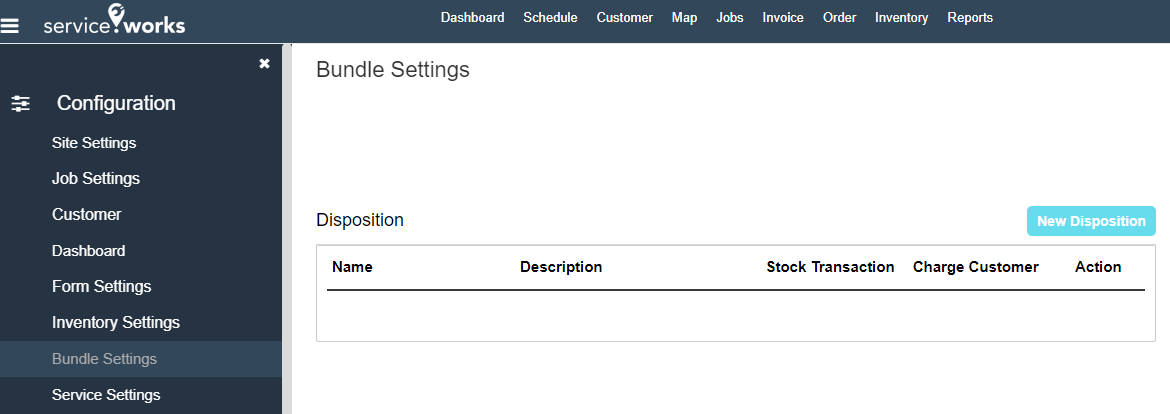
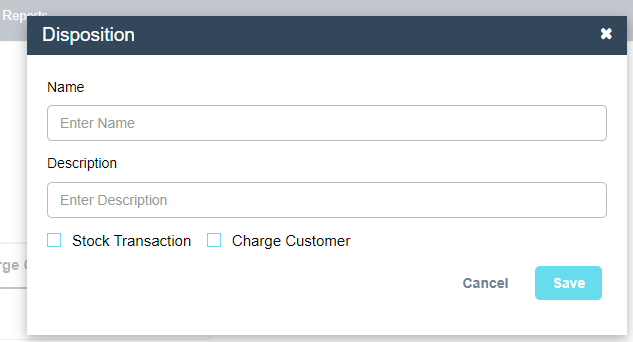
Upon clicking the new disposition button, a popup will appear, allowing you to do the following:
1. Enter a name for your disposition
2. Enter a description for your disposition
3. Enable stock transaction (or determine whether or not this disposition removes the item from your inventory when applied)
4. Enable Customer Charge (or determines whether or not this disposition adds the charge for items/services to the invoice)
Once satisfied with your selection, click Save to continue.
Adding Bundles to Jobs/Estimates
With your bundles now created, you are ready to add them to a ticket. When creating a new job / estimate or editing an existing one, scroll down to the Bundle section of the edit menu. From here, you can begin to type in the name of the bundle, and it will auto-populate from the list of bundles you have created.
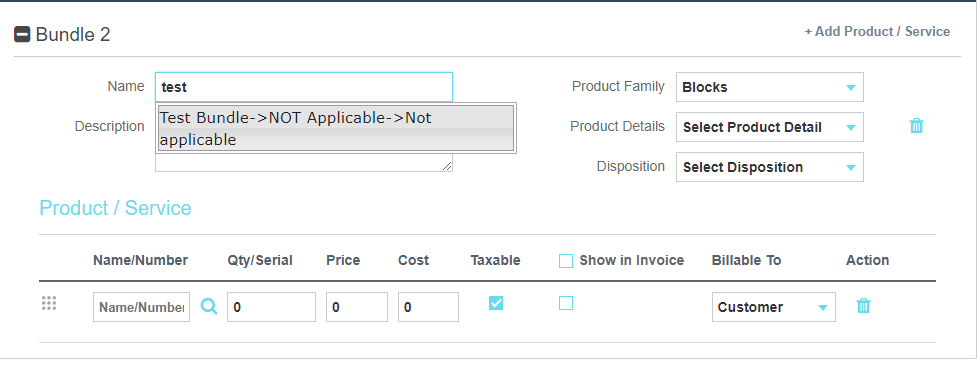
Once selected, you should see all the items and services associated with the bundle populate beneath the description. Be sure to hit save before moving away from this screen to ensure the bundle remains on the service ticket.