All Estimations
The process of projecting the costs related to a service, or activity is called cost estimation. It implies calculating the estimated monetary value of all the resources needed to finish the job, including technician, supplies, machinery, overhead and other indirect costs.
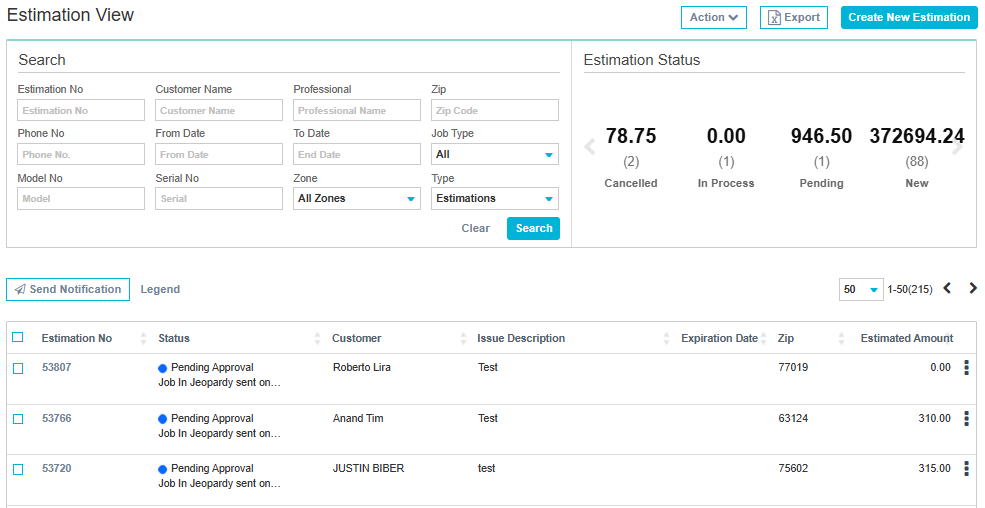
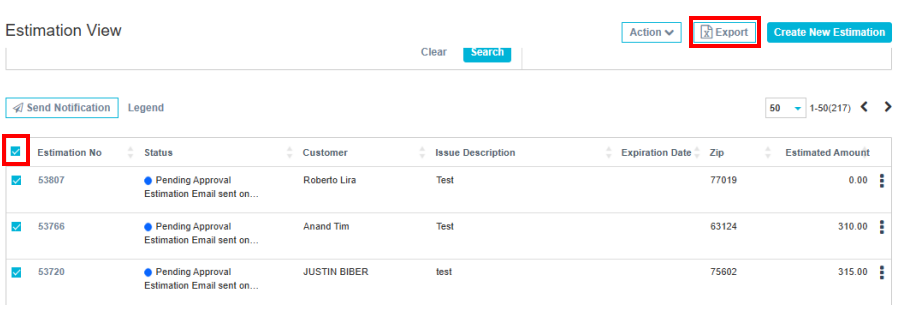
In All Estimations page you can search estimation, view status of estimation, create new estimation and export the estimation.
Action
From Action drop down menu you can print, email and create multioption estimation.
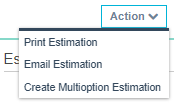
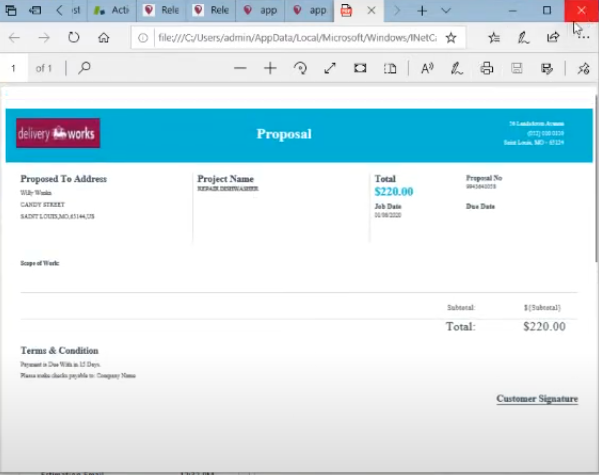
Print Estimation: Select at least one ticket and click ‘Print Estimation’ link. The estimation is downloaded in PDF format.
Email Estimation: Select at least one ticket and click ‘Email Estimation’ link. The estimation is sent to the customer.
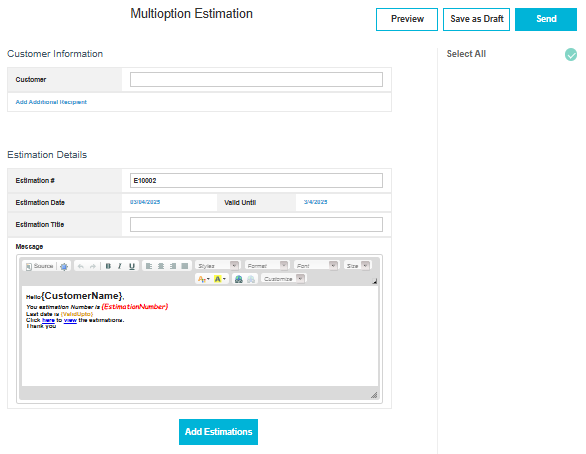
Create Multioption Estimation: Click this if you require to create and send multi-option (Good – Better – Best) estimations to your customer.
Export
You can select required or all estimation tickets and export to .xls file by clicking ‘Export’ button.
Create New Estimation
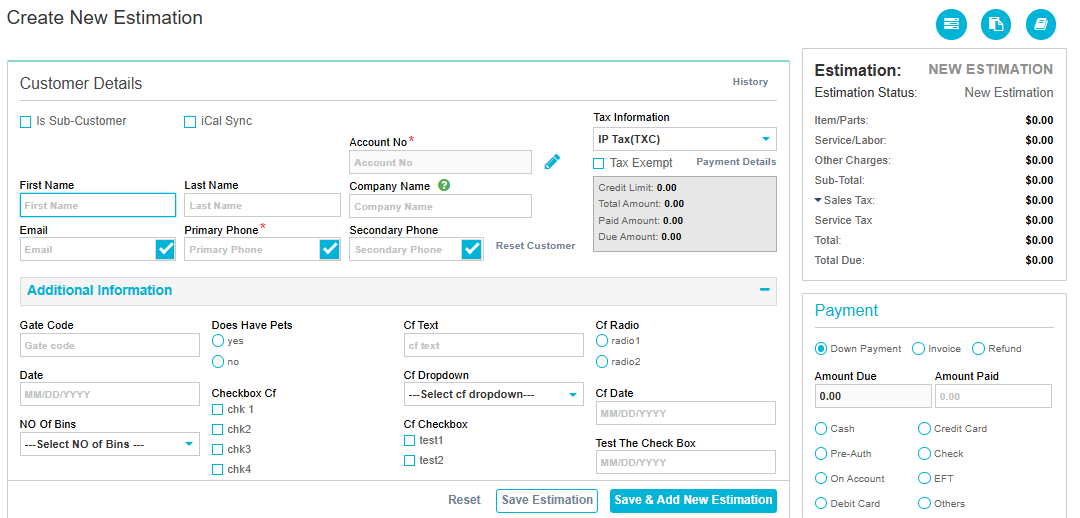
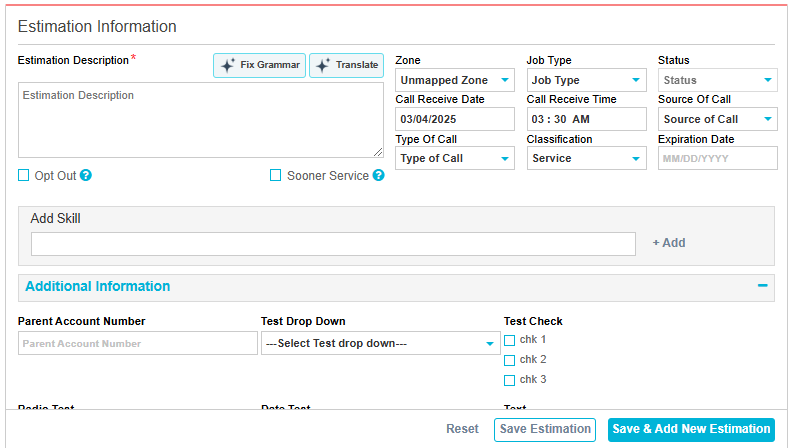
Click  button to create New Estimation. Similar to Job Creation page you can search or create customer here. Add Estimation Information, add Service/Labour, product, charges etc.
Search
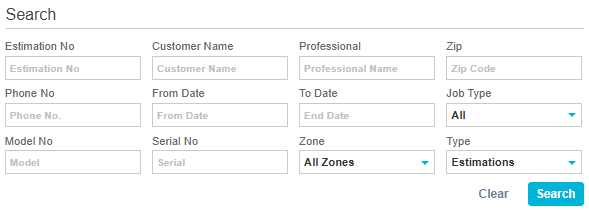
You can search Estimation by Estimation number, Customer Name, Professional Name, Zip code, Phone No, From Date, To Date, Job Type, Model No, Serial No, Zone and Type(Estimation or Multioption Estimation).
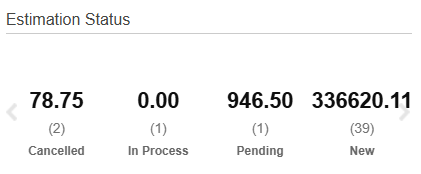
Estimation Status:
This section in the Estimation View page shows the number of cancelled, in Process, Pending and New Estimations.
How estimation invoice will look like
More actions under three dots menu in the grid
From the three dots menu you can do a number of things like.
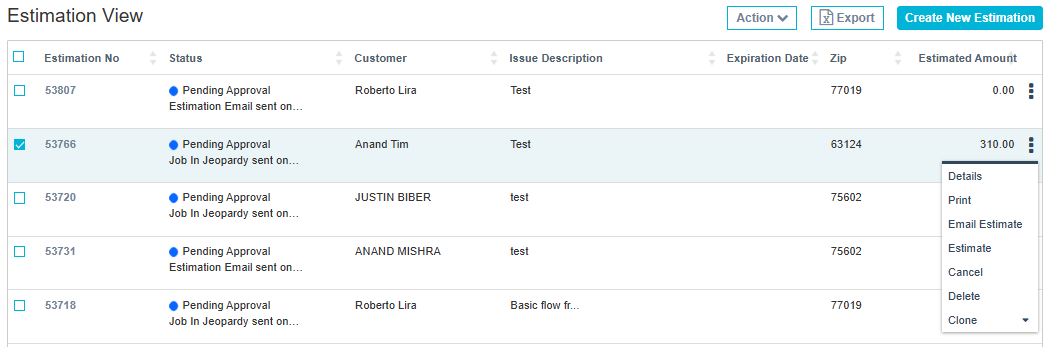
Details: If you click this option the Estimation Details page for the selected ticket opens in edit mode.
Print: You can print the selected estimation from this option.
Email Estimate: You can email the estimate to your customer using this option.
Cancel: You can cancel the selected estimation
Delete: You can delete the selected estimation
Clone: You can clone the estimation as Job and as estimation.
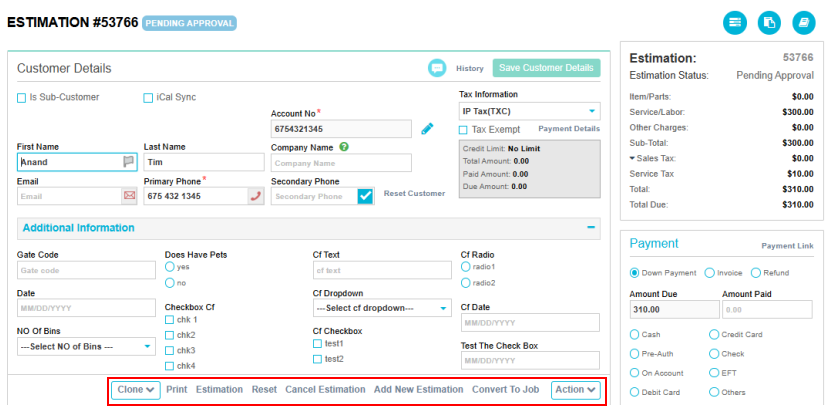
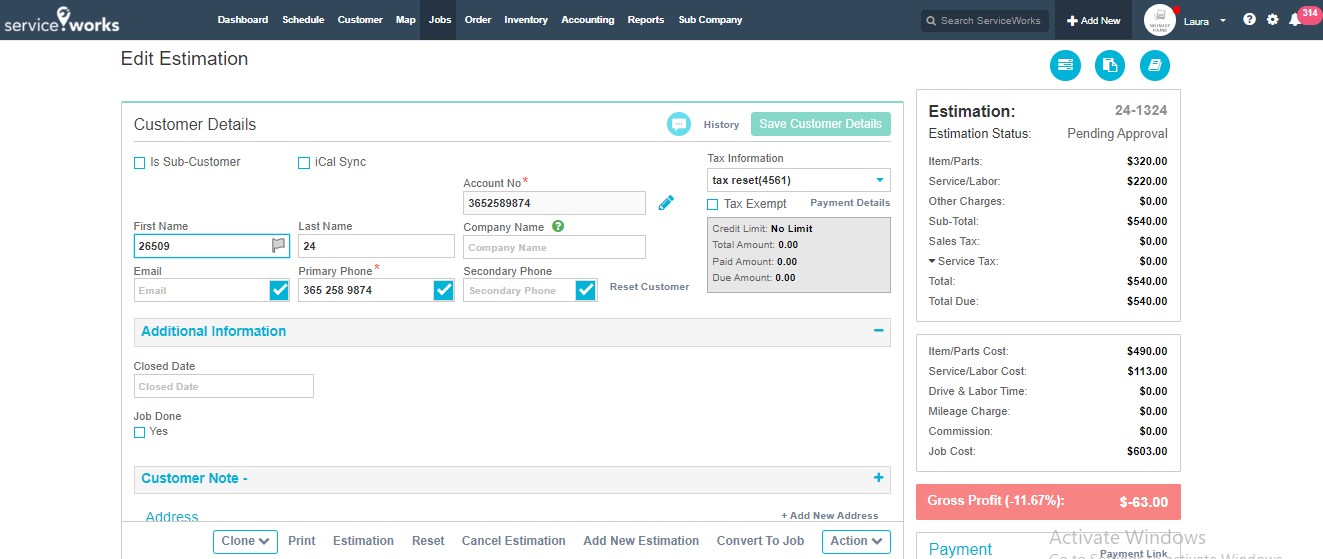
Note: You can clone, print, cancel, email estimation from Action dropdown menu from estimation edit page also.
You can also convert an estimation to job from here.
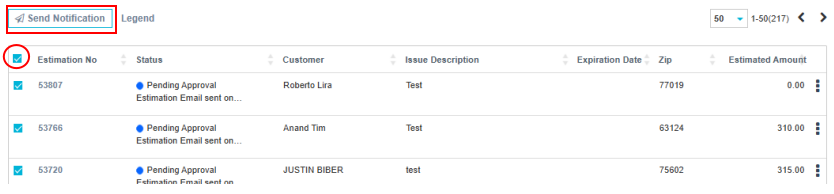
You can also send bulk notification through Email, Text and RoboCall after selecting all the tickets and clicking on Send Notification button as shown below.
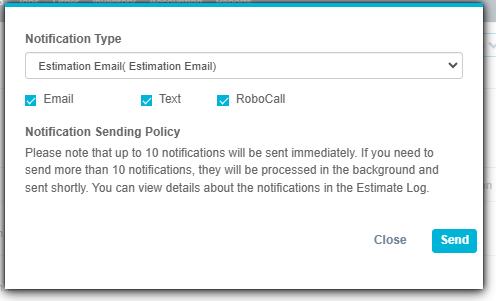
Select Notification type from drop down field. Select the mode(s) of notification and click ‘Send’.
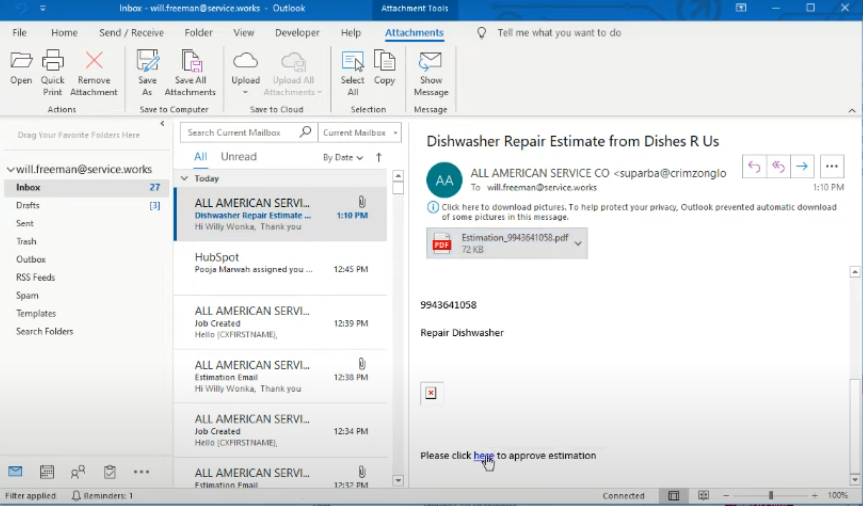
On clicking the link the customer can approve the estimation.
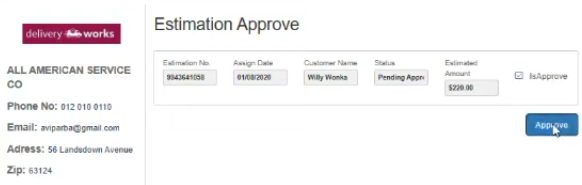
After approval the estimation status will change to ‘Approved’. Now the estimation is to be converted to job by clicking ‘Convert To Job’ link as shown in the image below.