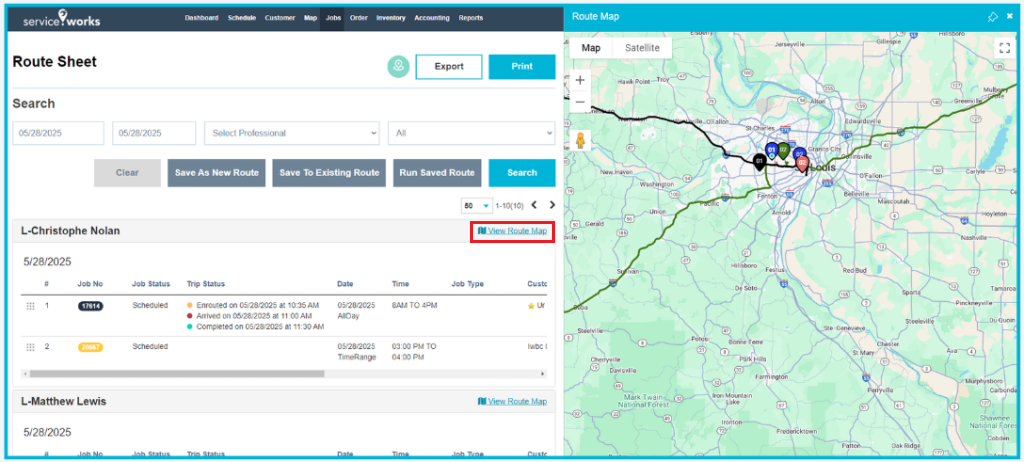
Route Sheet
A route sheet is a document that specifies the exact stages or processes needed to finish a work or task. It is used as a guide for technicians, ensuring that work is completed effectively and in the right sequence.
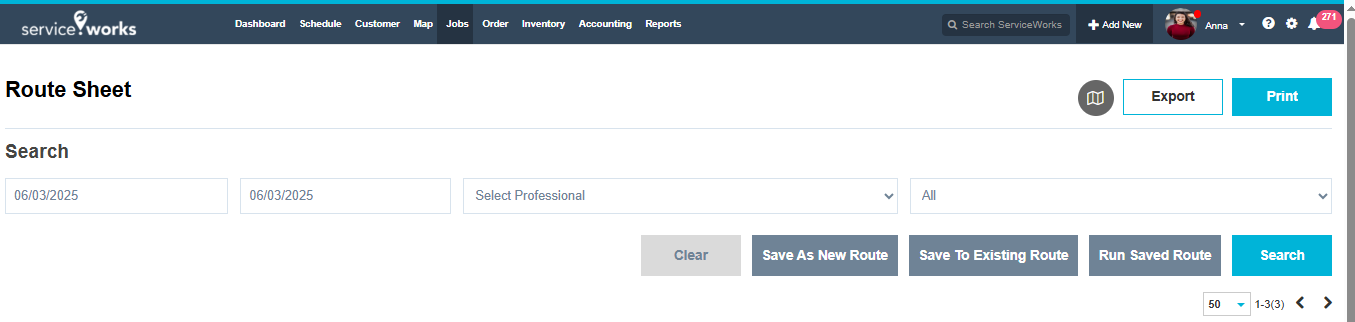
Map: You can view the map by clicking the Map icon
Export: You can export the route sheet
Print: You can print the route sheet
You will also be able to do a number of things on the Route Sheet page as follows:
Clear: By clicking this button route sheets data will be cleared
Save As New Route: Click on this button to save as with a new route sheet name
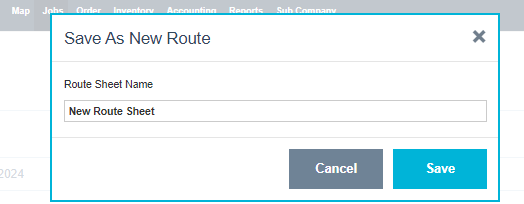
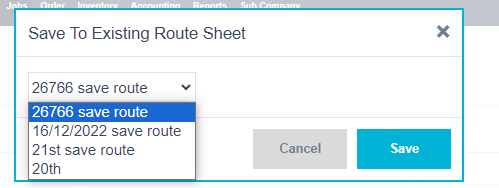
Save To Existing Route: Click on this button to save this to existing route
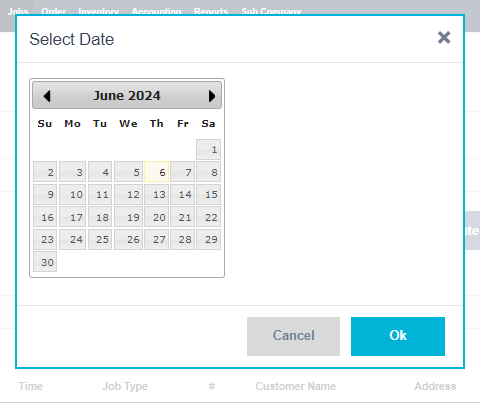
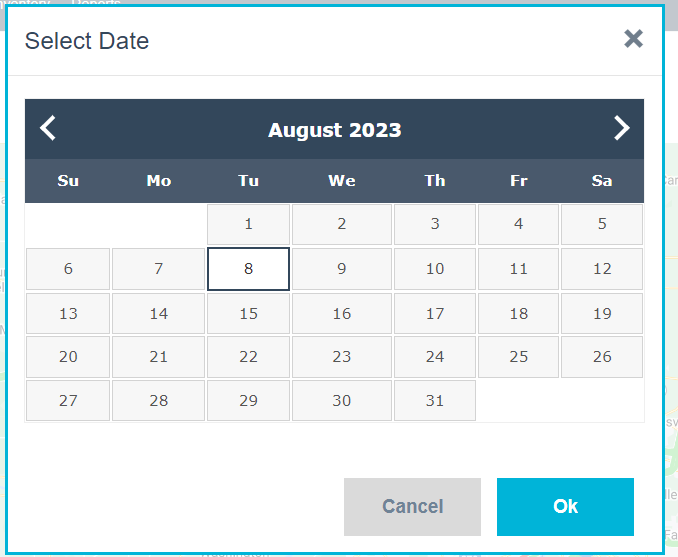
Run Saved Route: In the route sheet menu, click Run Saved Route, a pop up like below where you need to select the date on which date you want to run the saved route.
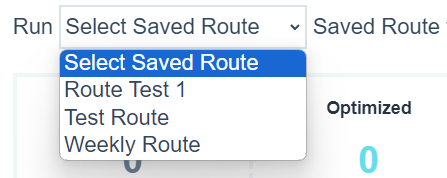
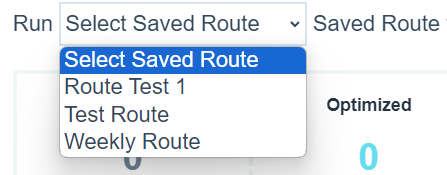
Next, select the saved route from the dropdown list in the upper left hand corner.
You should see a result like this below for running the saved route on the same day. Make sure to select the exact saved route name from the drop down.
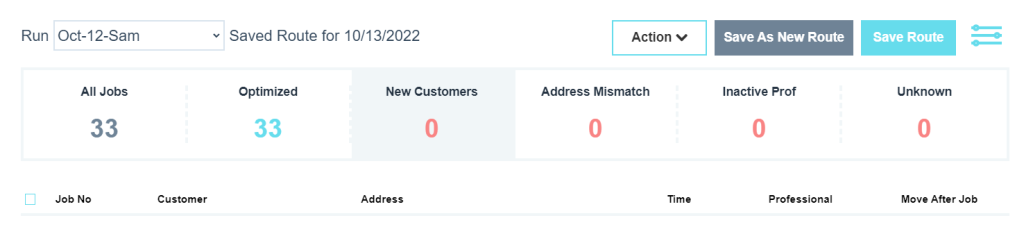
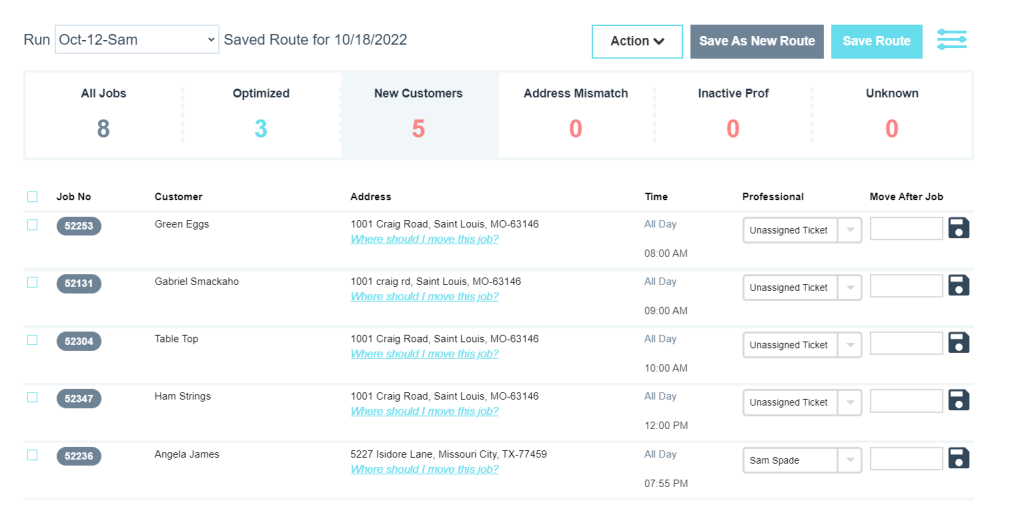
If the date where you are running the saved route differs, then you will see a result like the one below.
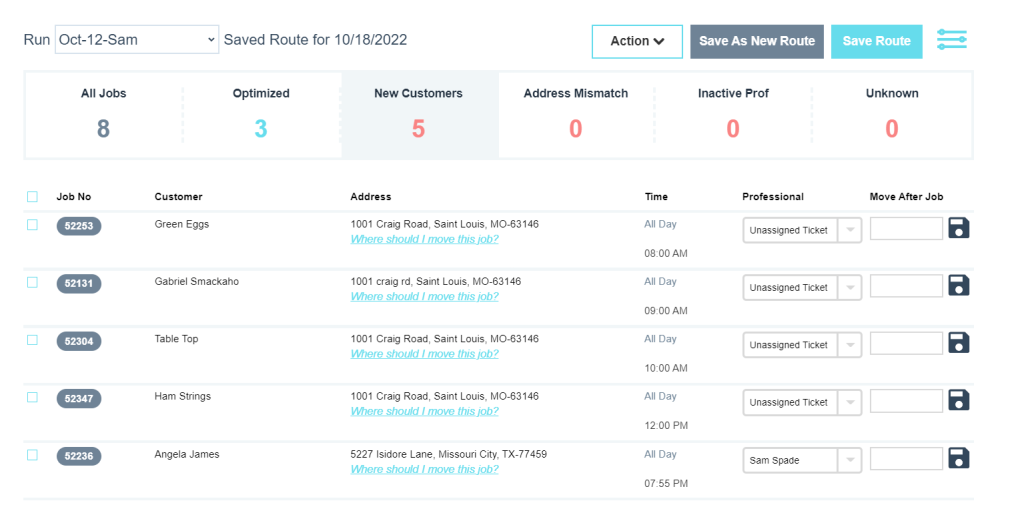
There are 4 exceptions that you may need to fix.
- New Customers: You may have new customers in the new date that you may not had in your saved route. You will need to move the customers to the correct sequence.
- Address Mismatch: The service address in the new date may differ from what you had in your saved route. Please move the job where it should belong.
- Inactive Professional: The new date may have the same customers, but different professional assigned. You need to assign correct professional to these jobs.
When you are happy with all your fixes, the jobs will move under Optimized tab. Your task is to make sure the job count under all jobs equals to the job count under Optimized.
You can save this modification and update the saved route with this data by clicking the blue Save Route button, or you can save this as new route by clicking the grey Save As New Route Button.
From the Optimization menu
To run saved routes from the optimization screen, hover over the Jobs tab and select Optimization.
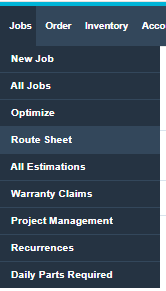
From the optimization menu, click Run Saved Route in the upper right hand corner.

In the following popup, select a date to run the saved route on.
Next, select the saved route name from the dropdown list in the upper left hand corner.
Once selected, your results should appear similar to the results below. Make any edits to this menu in regards to your current route, and click Save when finished.
Search: You can search Route Sheet based on the following criteria
- Date Range
- Select Professional
- Job Status
Route Sheet contains the following column
- Job No
- Job Status
- Date
- Time
- Job Type
- #
- Customer Name
- Address
- City
- Zip
- Phone
- Secondary Phone
- Problem Description
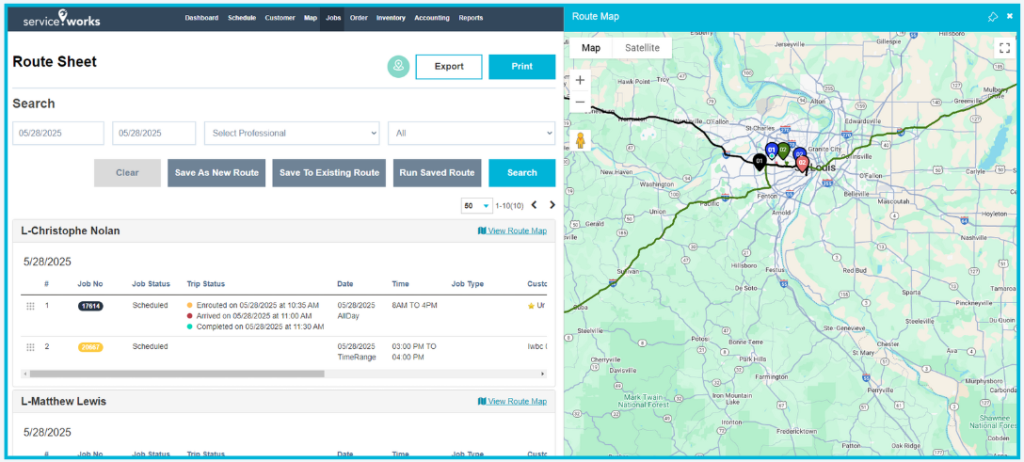
View Route Map: You can view route map of the technician by clicking this link.