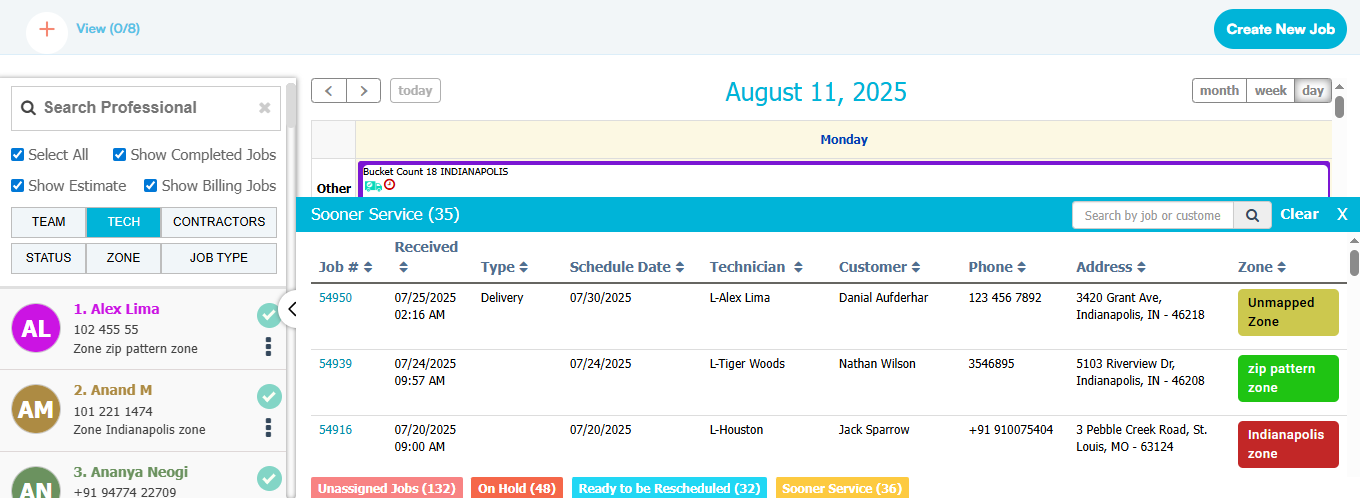
Calendar View
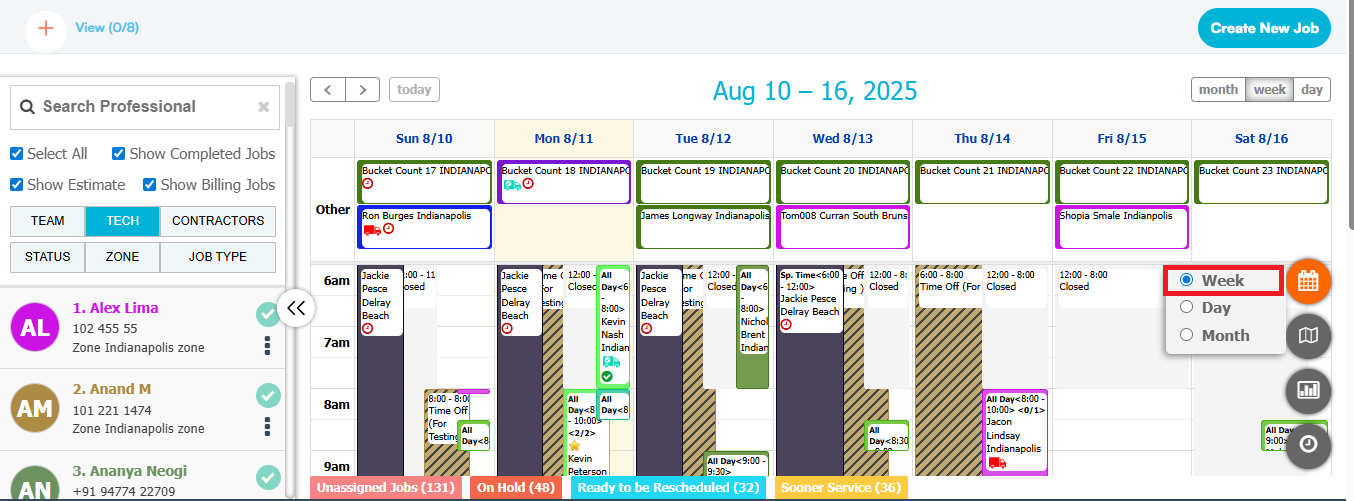
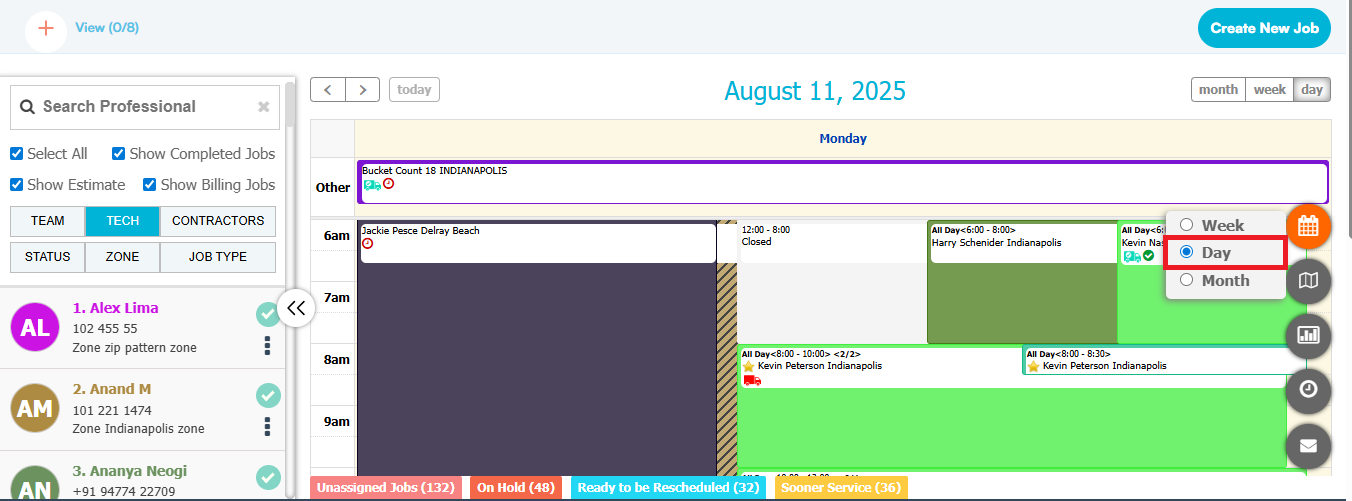
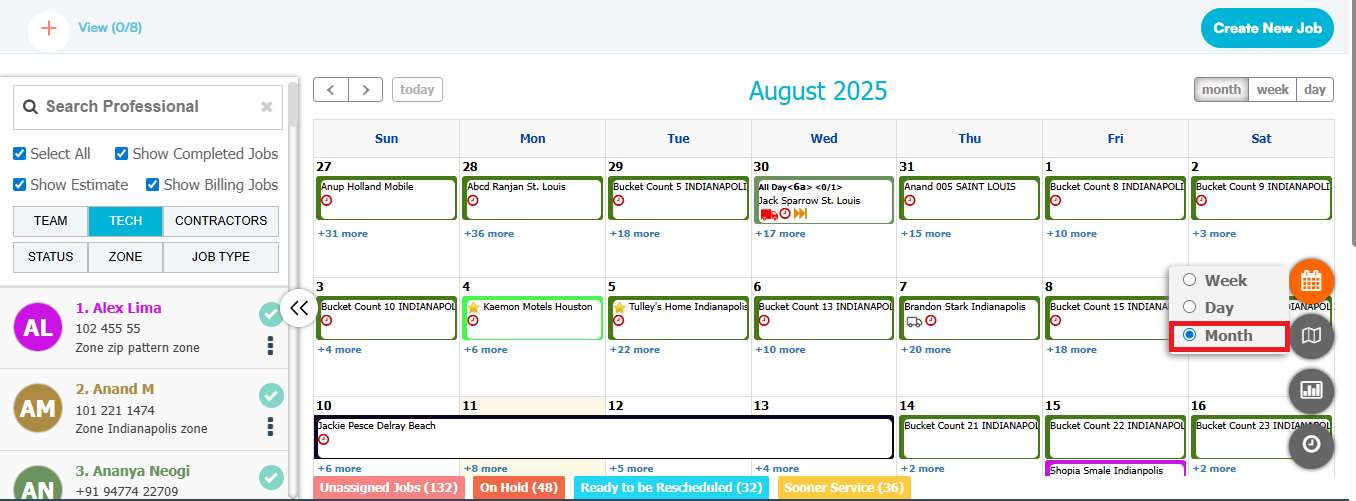
You can change calendar view in two ways. Either from tabs in the top right corner or from the calendar icon in bottom right corner. You have option to choose from the following:
a. Week Wise Calendar View
b. Day wise calendar view
c. Month wise Calendar View
The detailed description of each view discussed below:
a. Week Wise Calendar View: shows all allotted jobs and available slots in a week
b. Day wise calendar view: shows all allotted jobs and available slots in a day
c. Month wise Calendar View: shows all allotted jobs and available slots in a month
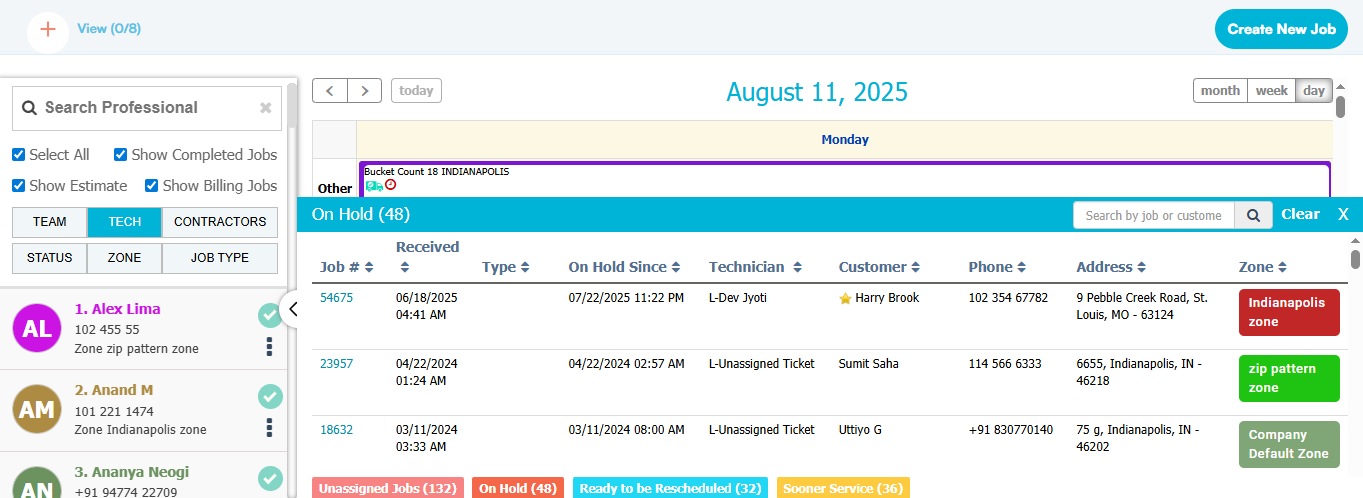
In each Calendar View there are four tabs at the left side bottom namely “Unassigned Jobs”, "On Hold",“Ready to be Rescheduled” and "Sooner Service".
Unassigned Jobs: Jobs marked as Unassigned will be listed within the Unassigned Jobs tab on the schedule. These jobs can be dragged and dropped from the list into a date and time slot of your choice. You can also clear the search by clicking on “Clear” button.
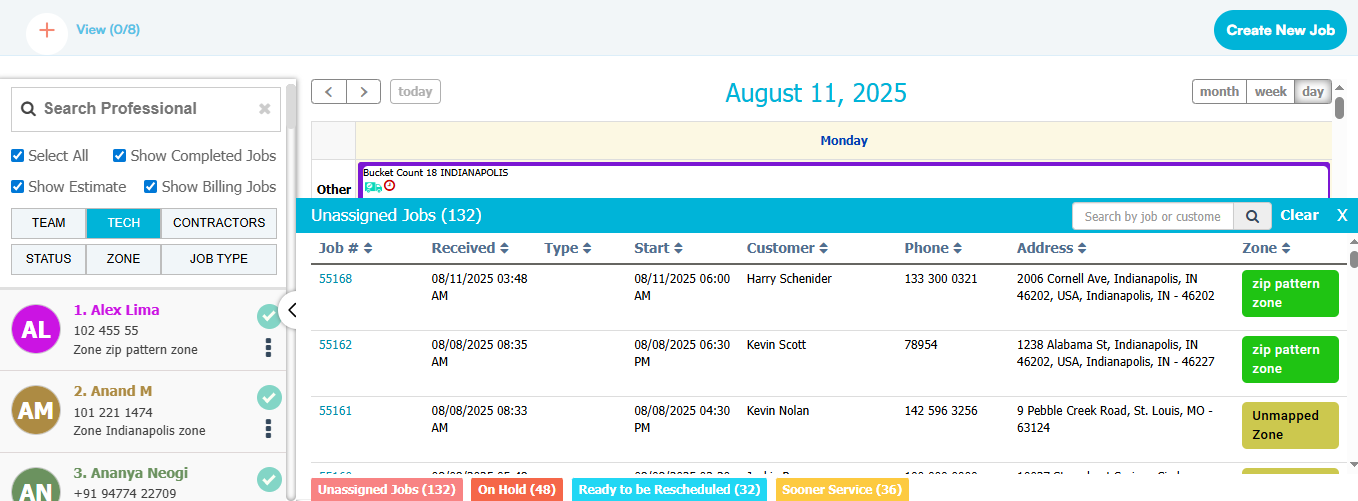
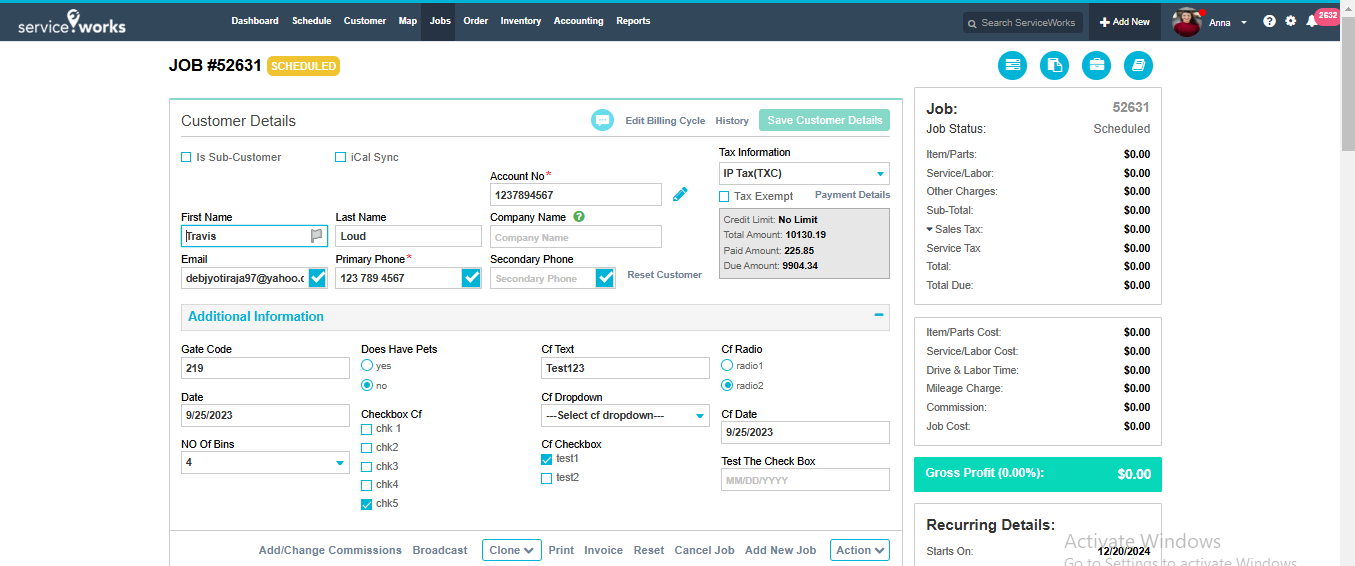
By clicking on the job id you can open the edit job page. From here you can assign the job.
On Hold: Jobs marked as On Hold will be listed within the On Hold tab on the schedule. These jobs can be dragged and dropped from the list into a date and time slot of your choice. You can also clear the search by clicking on “Clear” button.
Ready to be Rescheduled: Jobs marked as Ready to be Rescheduled will be listed within this tab on the schedule. Much like your unassigned or on hold jobs, these can be dragged and dropped from the list into a date and time slot of your choice. You can also clear the search by clicking on “Clear” button.
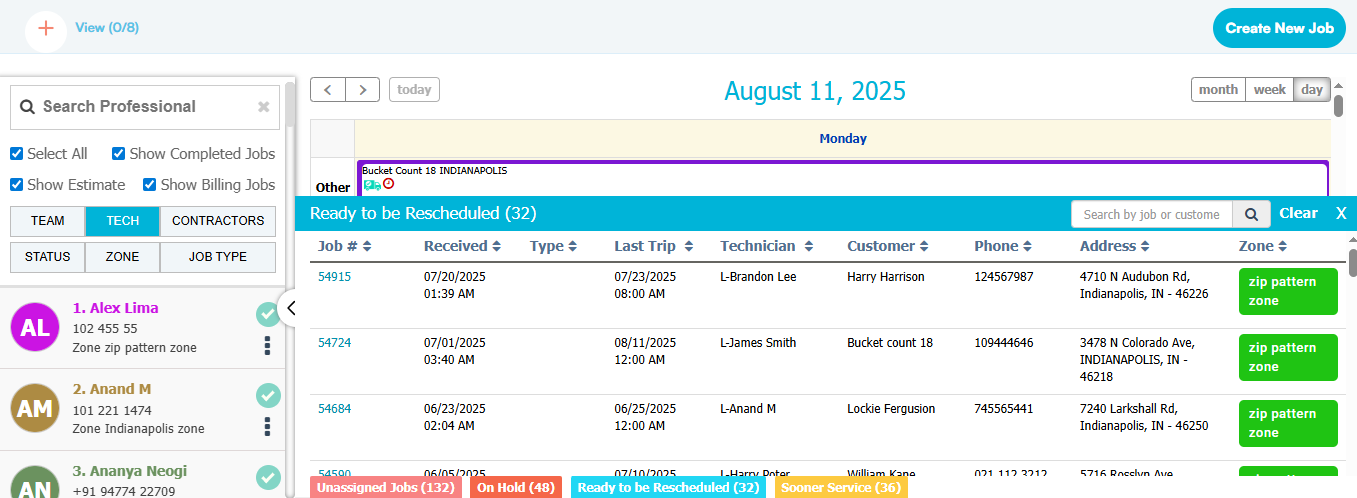
By clicking on the job id you can open the edit job page. From here you can reschedule the job.
Sooner Service: Jobs marked as sooner service will be listed within the new Sooner Service tab on the schedule. Much like your unassigned or on hold jobs, these can be dragged and dropped from the list into a date and time slot of your choice.